Meta Pixel helps you track learner activity inside your Testpress LMS and measure the performance of your Facebook and Instagram ad campaigns. Using Code Injection, you can add the Meta Pixel securely without modifying the core Testpress platform.
This article explains:
What Meta Pixel is and why it is used
How to get the Meta Pixel code from Facebook
How to add the Meta Pixel to Testpress
What Is Code Injection in Testpress?
Code Injection allows you to add third-party scripts across your LMS. It is commonly used for:
Meta (Facebook) Pixel
Google Analytics (GA4)
Google Tag Manager
Zoho SalesIQ and other tools
Why Use Meta Pixel in Testpress?
Even though Testpress is a login-based LMS, Meta Pixel helps you:
Track course and page views
Measure sign-ups and purchases
Retarget existing learners
Optimize Facebook and Instagram ad campaigns
Build custom and lookalike audiences
Create a Meta Pixel in Facebook
1. Log in to Meta Business Manager, Go to Events Manager, Click Connect Data Sources, Select Web
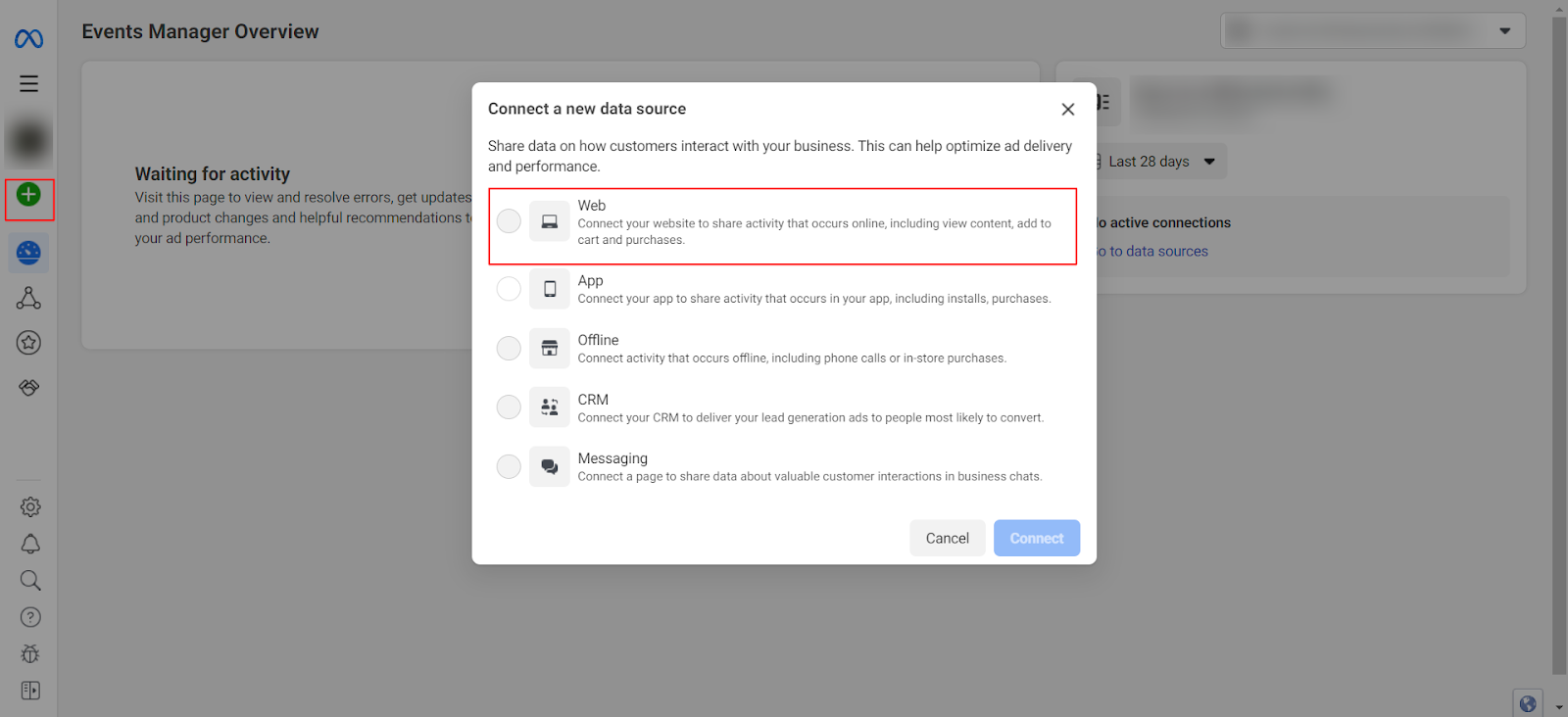
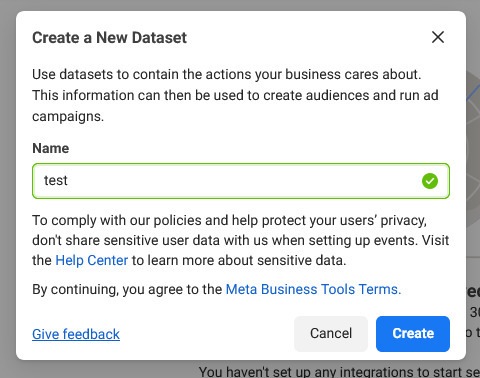
2. Enter a Dataset (Pixel) Name and click Create.
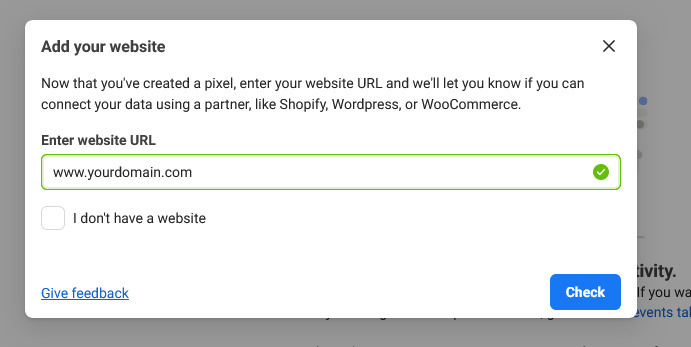
3. Enter your website URL and click Check.
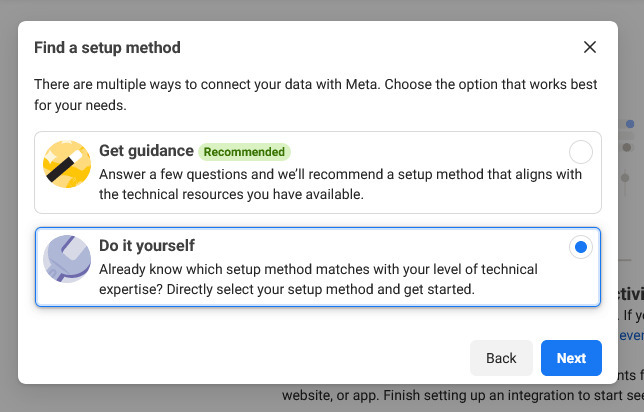
4. Choose Do it yourself and click Next.
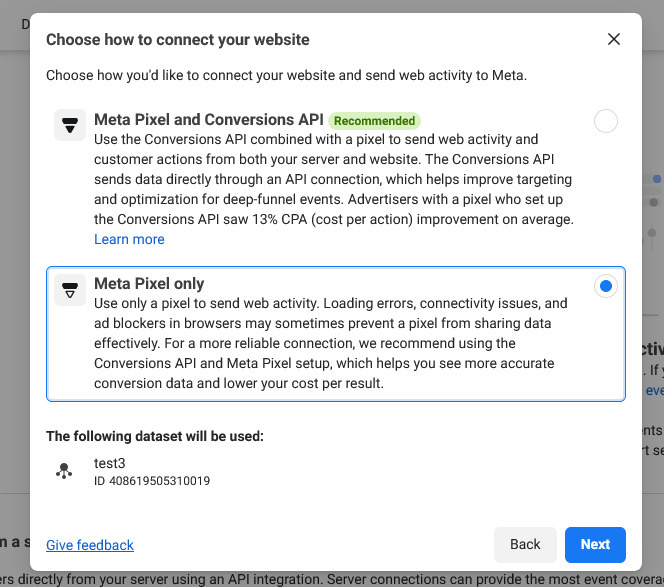
5. Select Meta Pixel only and click Next.
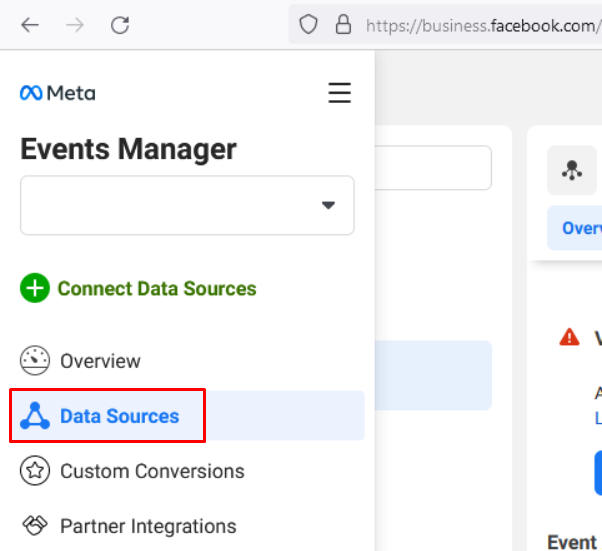
6. Navigate to Data Sources and select the Pixel you created.
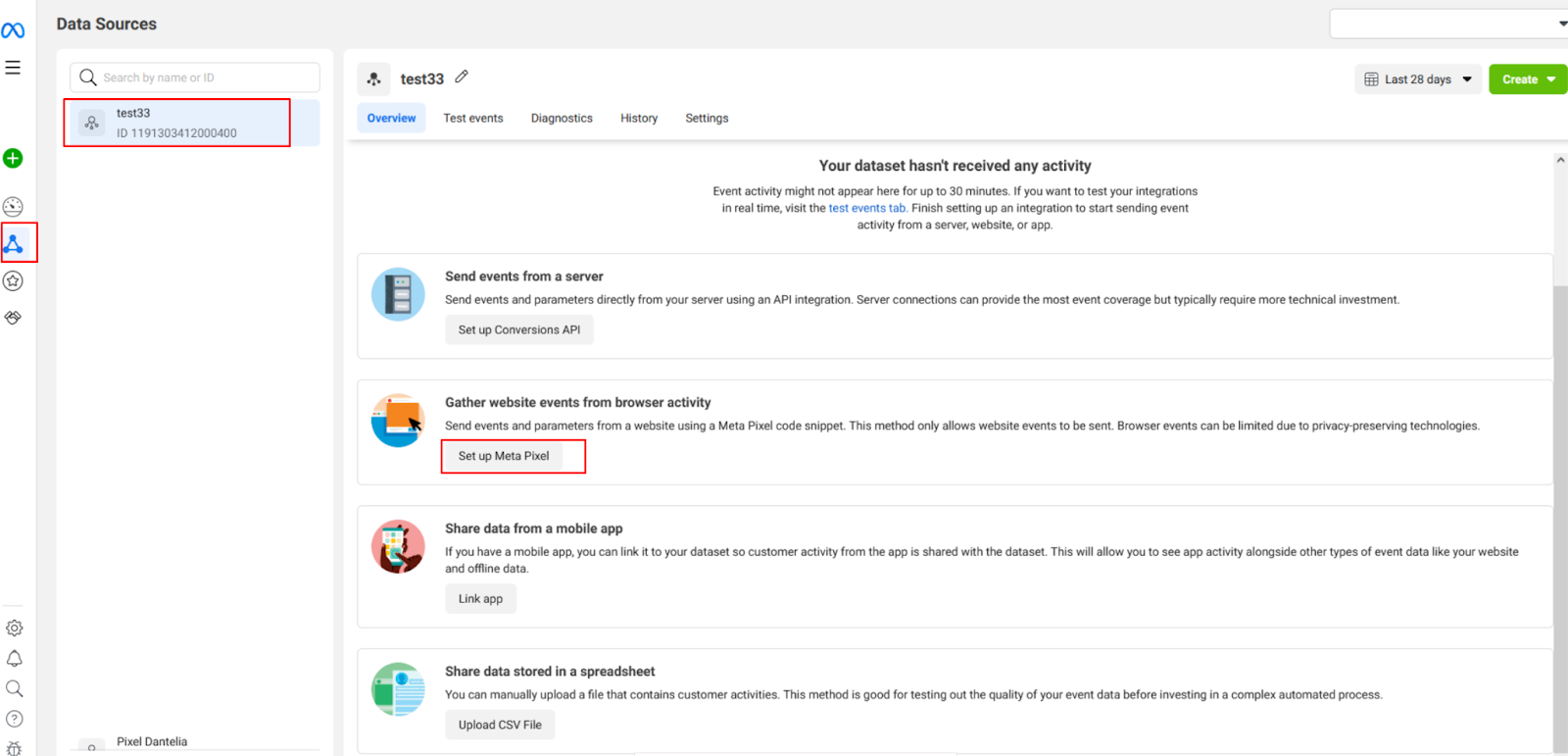
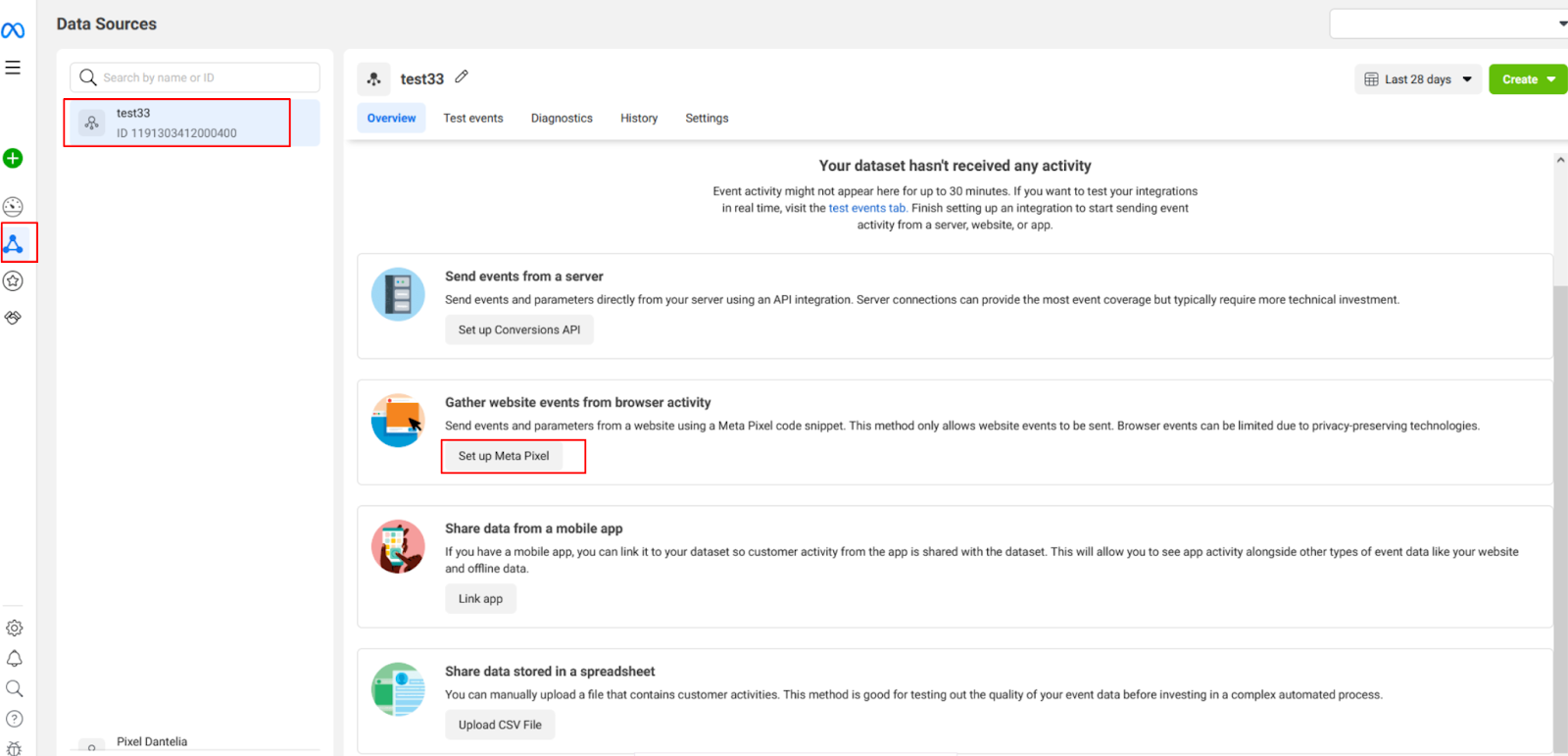
7. Click Set up Meta Pixel.
8. Choose Install Code Manually.
9. In the Pixel base code, locate the fbq('init', 'XXXXXXXXXXXXXXX') line.
Copy the 15- or 16-digit Pixel ID shown next to init.
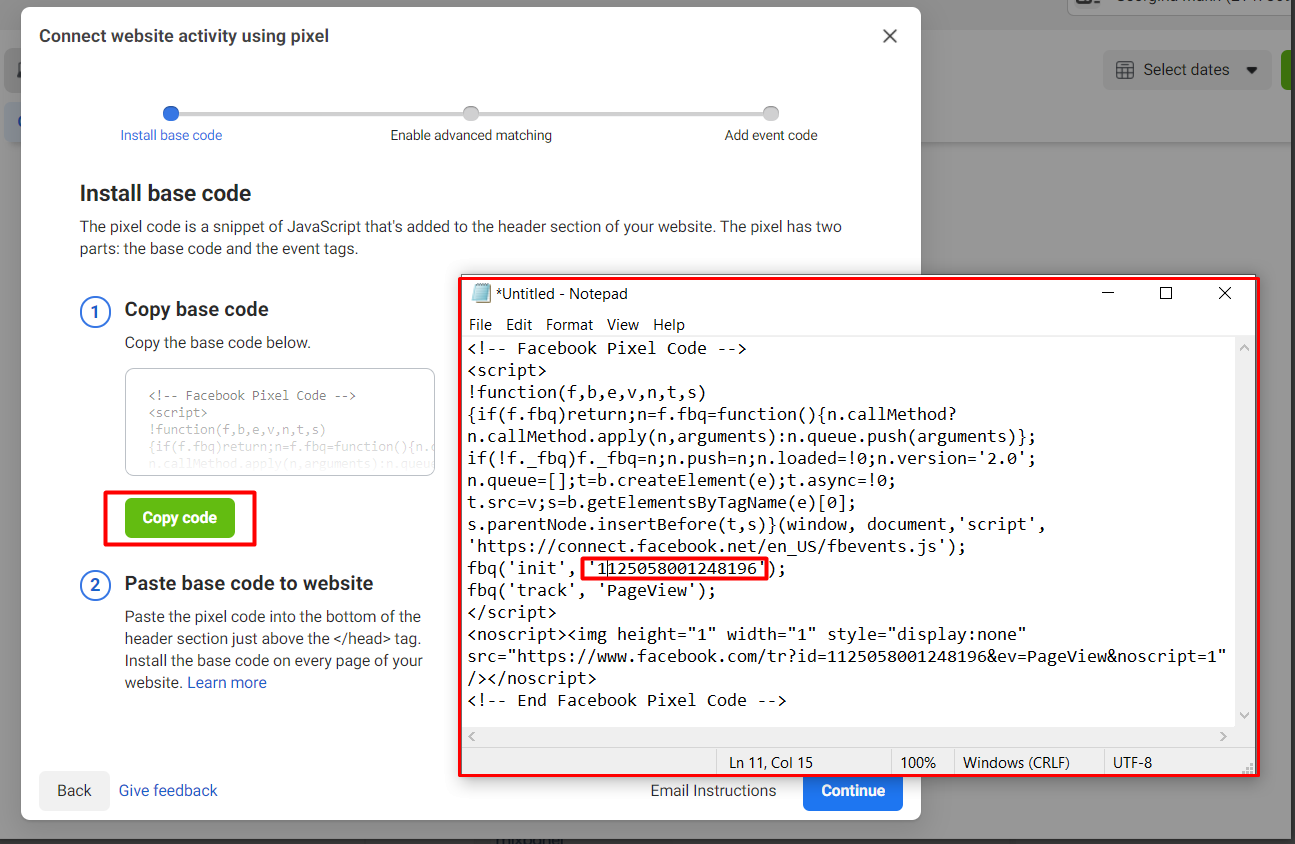
This number is your Meta Pixel ID and is required for tracking user activity.
Add Meta Pixel to Testpress
Log in to your Testpress Admin Dashboard, Navigate to Settings, Click Code Injection
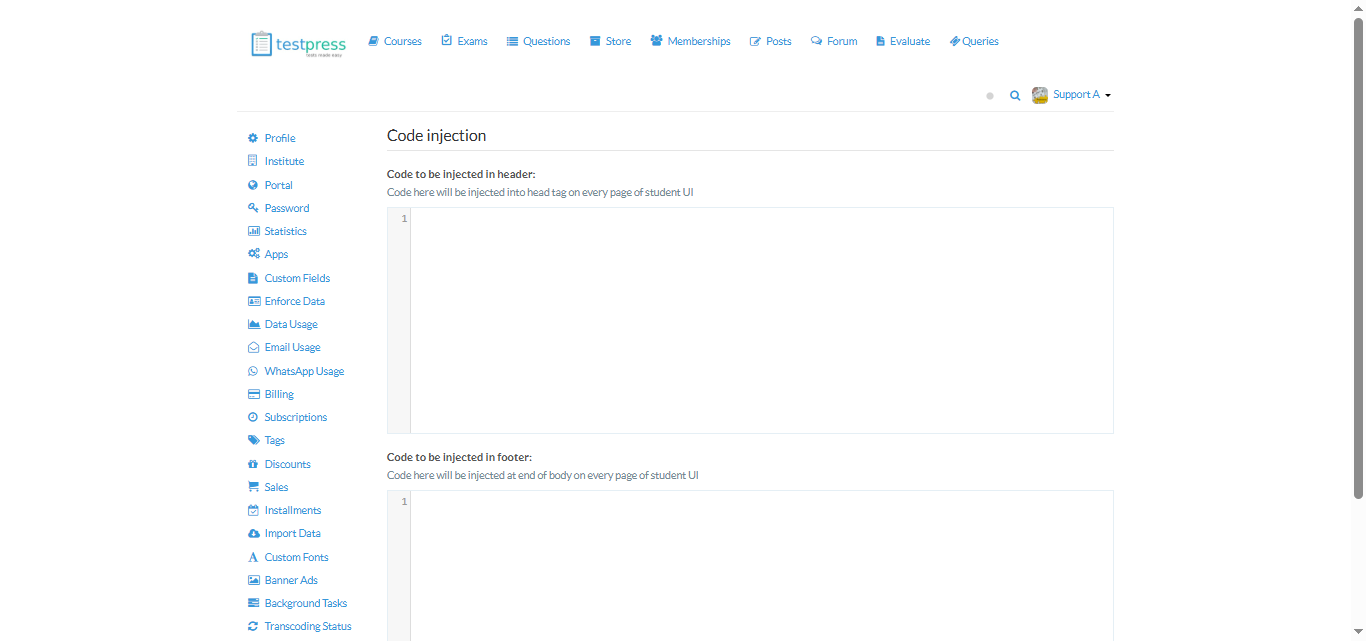
Paste the Meta Pixel base code into: Code to be injected in Header
Click Submit
Meta Pixel is now active on your Testpress LMS.
Was this article helpful?
That’s Great!
Thank you for your feedback
Sorry! We couldn't be helpful
Thank you for your feedback
Feedback sent
We appreciate your effort and will try to fix the article