This section helps you extend or update the subscription expiry date for users in a batch. This is useful when you want to provide learners additional time to complete their courses.
Steps to Extend Subscription Expiry
Navigate to Batch Management under membership

Click on the batch for which you want to extend the subscription expiry.
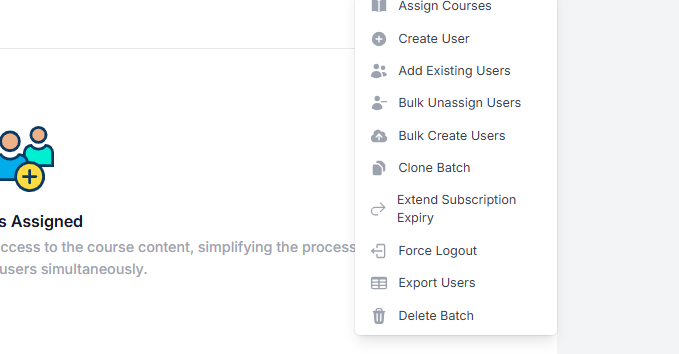
Click on Actions.
Select Extend Subscription Expiry.
Choose the new Subscription expiry date using the date picker.

Click Submit to apply the changes, or Cancel to discard them.
All active user subscriptions in the batch will be updated to expire on the selected date. Subscriptions that do not currently have an expiry date will remain unchanged.
Was this article helpful?
That’s Great!
Thank you for your feedback
Sorry! We couldn't be helpful
Thank you for your feedback
Feedback sent
We appreciate your effort and will try to fix the article