Enable users to sign in quickly using Google or Facebook accounts
Social Login allows learners to log in using their existing Google or Facebook accounts, reducing friction during sign-up and improving user experience.
Testpress supports social login via Google and Facebook.
How to Enable Google Login
Steps
Navigate to Settings.
Click on Apps.
Select Social Login.
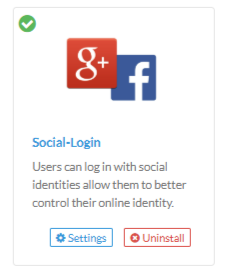
Under the Google section:
Enter your API IDs and Secret Keys of Google and Facebook
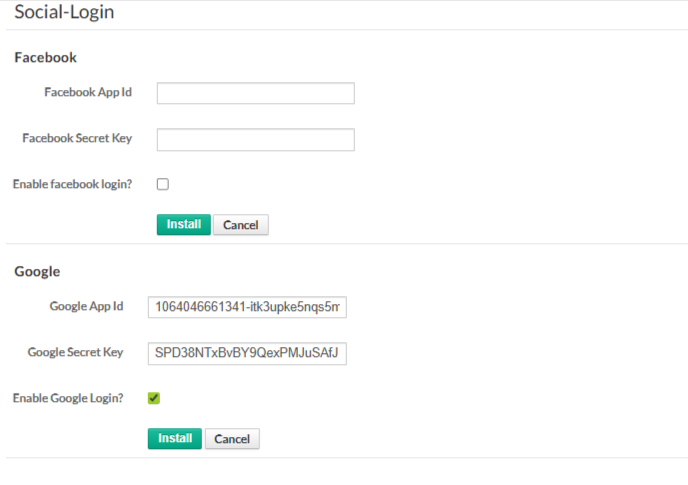
Click Install to save changes.
Where to Get Google App ID & Secret Key
Go to Google Cloud Console.
Create or select a project.
Navigate to APIs & Services → Credentials
Click Create Credentials → OAuth Client ID.
Choose Web Application.
Copy the Client ID and Client Secret.
Paste them into the Google login fields in Testpress.
Where to Get Facebook App ID & Secret Key
Go to Meta for Developers.
Create a new app.
Select Consumer as the app type.
Add Facebook Login as a product.
Navigate to Settings → Basic.
Copy the App ID and App Secret.
Paste them into the Facebook login fields in Testpress.
Important Notes
Ensure OAuth redirect URLs are configured correctly in Google and Facebook settings.
Changes take effect only after clicking Install.
Social login simplifies onboarding and increases conversion rates.
Was this article helpful?
That’s Great!
Thank you for your feedback
Sorry! We couldn't be helpful
Thank you for your feedback
Feedback sent
We appreciate your effort and will try to fix the article