This section explains how to integrate Google Analytics 4 (GA4) with your platform to track user activity, page views, traffic sources, and conversions. GA4 helps you understand learner behavior and measure the effectiveness of your marketing efforts.
Steps to Integrate GA4
Navigate to Settings in Testpress portal
Click on Apps or Integrations.
Select Google Analytics (GA4).
Enter your GA4 Measurement ID.
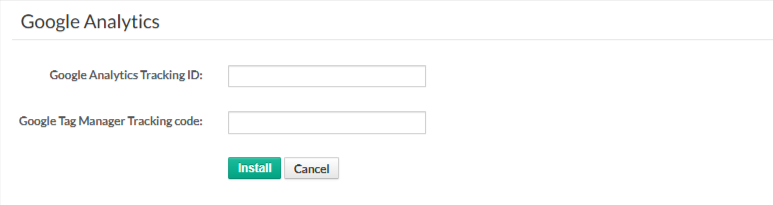
Click Save to complete the integration.
Once saved, GA4 tracking will be enabled and data will start flowing into your Google Analytics account.
Where to Get GA4 Measurement ID
You can find the GA4 Measurement ID from your Google Analytics account.
Log in to Google Analytics.
Select your GA4 Property.
Click on Admin → Property → Data Streams

You will find the Measurement ID

5. Paste the measurement ID into the respective fields in Testpress.
Where to Get Google Tag Manager Container ID
Go to Google Tag Manager.
Log in using your Google account.
Select your Account.
Choose the required Container.
Copy the Container ID (format: GTM-XXXXXXX).
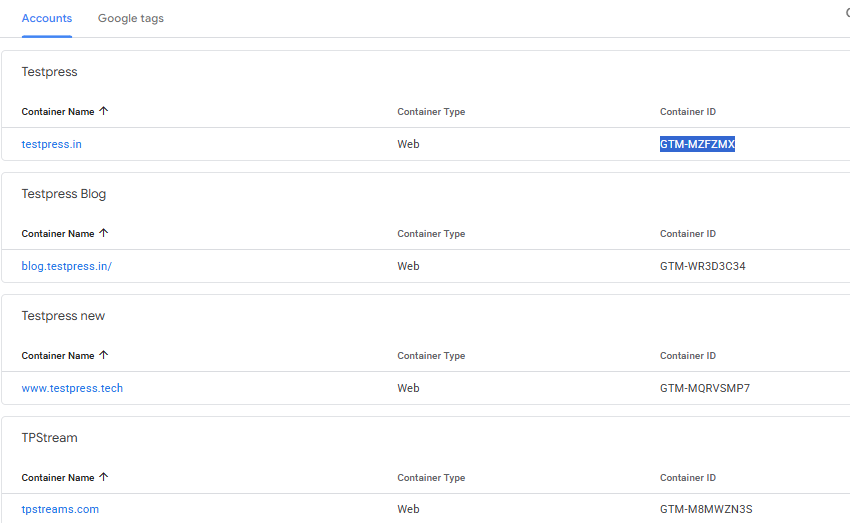
Copy the tracking code and paste these keys into the respective fields in Testpress.
Was this article helpful?
That’s Great!
Thank you for your feedback
Sorry! We couldn't be helpful
Thank you for your feedback
Feedback sent
We appreciate your effort and will try to fix the article