This section explains how to add validation rules to custom fields in course forms to control the format of user inputs.
How to Set Up Validation Rules
Step 1: Open Custom Fields Settings
Go to Settings → Custom Fields.
Step 2: Create or Edit the Custom Field
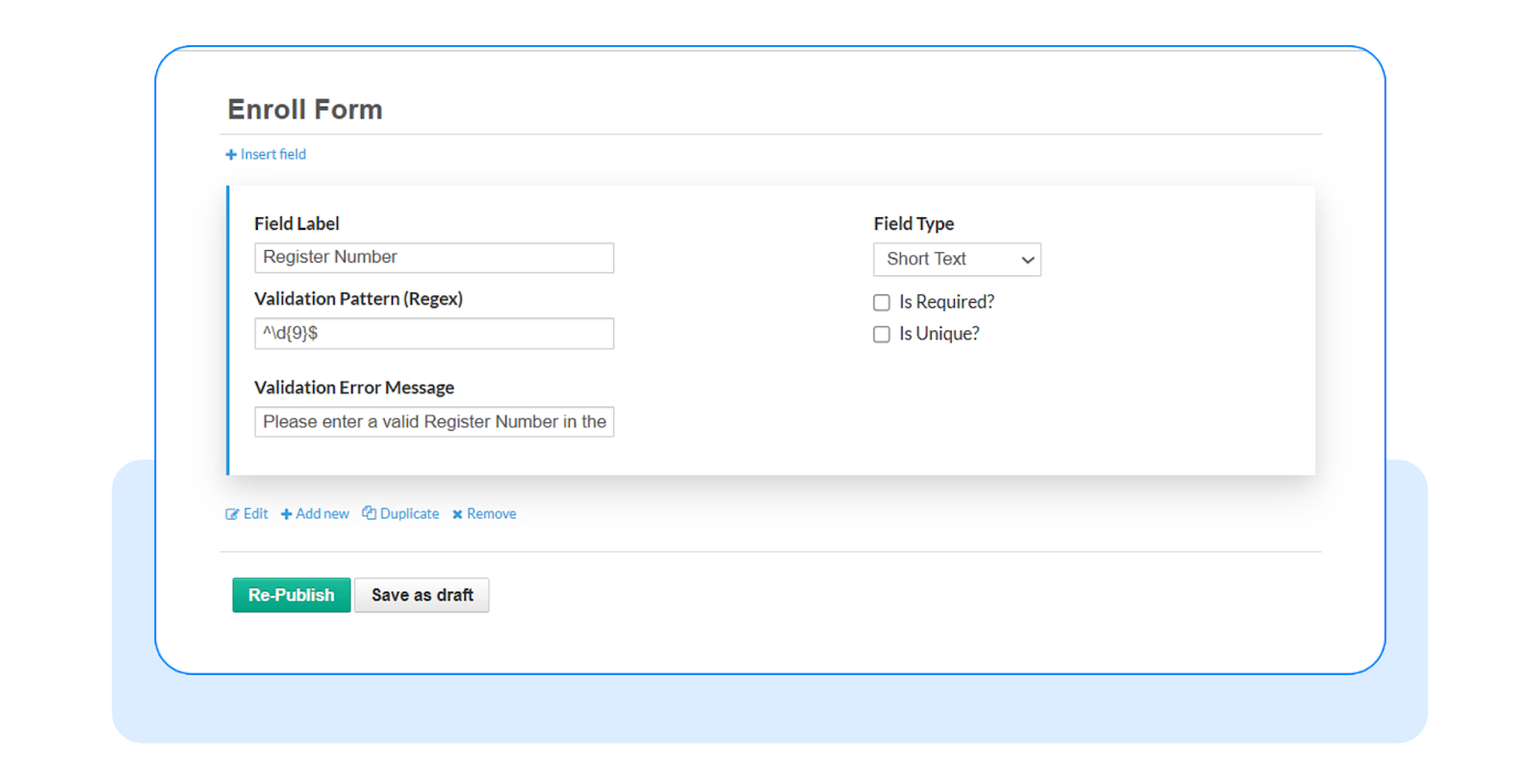
Click Add Field to create a new custom field or edit an existing one. Select Short Text as the field type.
Step 3: Add Validation Pattern
Enter the regex validation pattern to define the required input format.
Example: Student ID starting with UNI followed by 7 digits — ^UNI\d{7}$.
Step 4: Add Error Message (Optional)
Enter a Custom Error Message to guide users when the input is invalid.
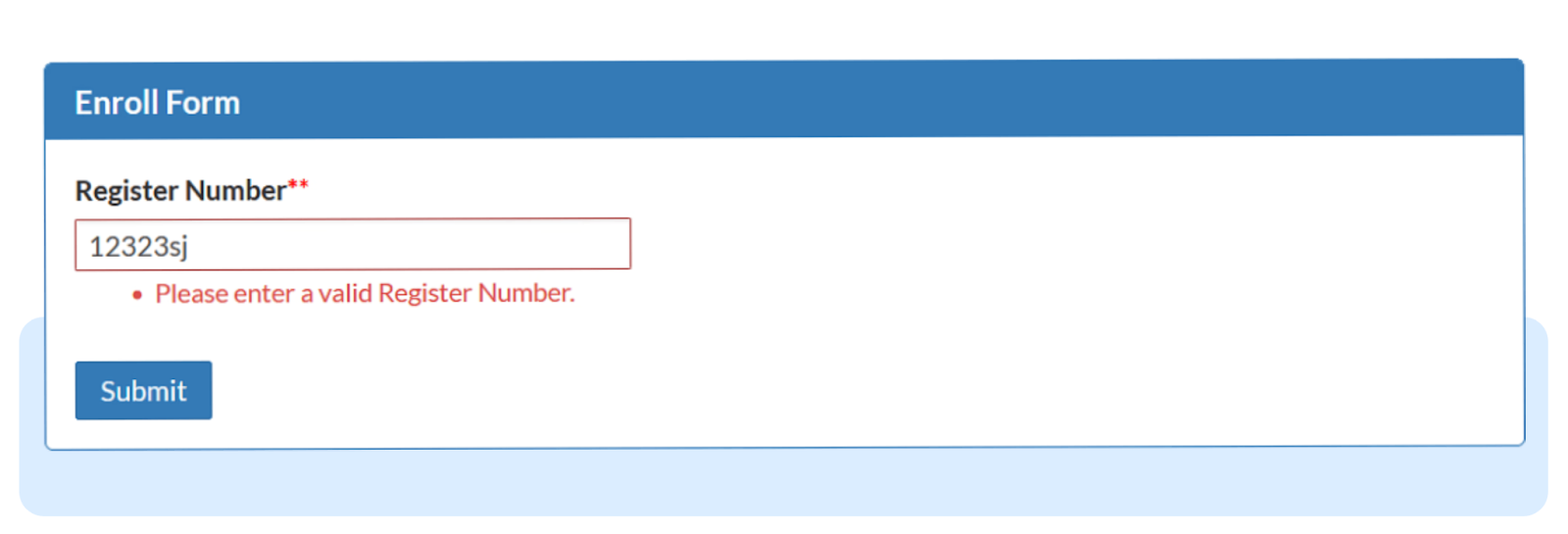
If left empty, a default message will be shown.
Step 5: Save the Field
Save the custom field and publish the form.
How Validation Works
Users must enter data that matches the regex pattern.
If the input does not match, the form cannot be submitted.
The error message is displayed until the correct format is entered.
Common Use Cases
Register numbers
Employee or student IDs
Admission or application codes
Any field requiring a fixed format
Regex validation helps keep form data clean and consistent by ensuring inputs follow the required format.
Was this article helpful?
That’s Great!
Thank you for your feedback
Sorry! We couldn't be helpful
Thank you for your feedback
Feedback sent
We appreciate your effort and will try to fix the article