This section helps you create predefined roles and configure role-based permissions to control what users can view, add, modify, or delete within the admin portal.
Steps to Create a Predefined Role
Navigate to Memberships, Click on Roles Management.

Click Create to add a new role.

Enter a Name for the role you want to create.
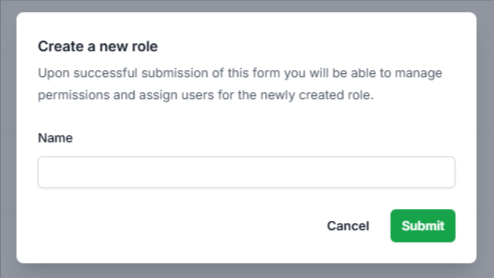
Click Submit to proceed.
Configure role permissions and access by enabling the required actions (View, Add, Change, Delete) for each resource.
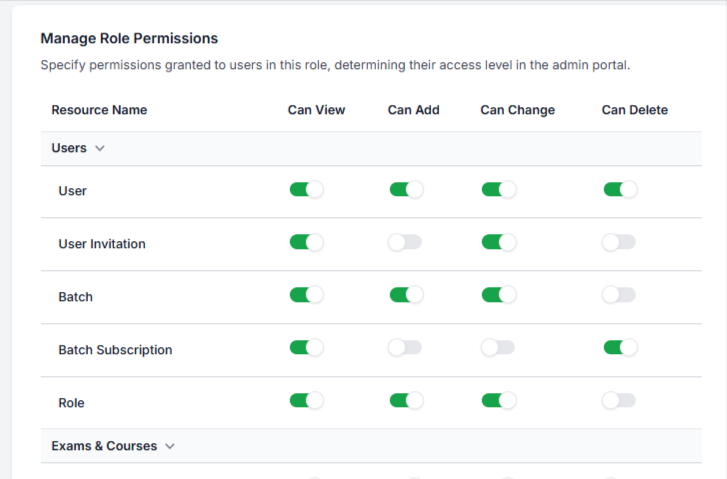
Assign users to the role as needed.
Once saved, the predefined role will be available and can be assigned to users with the selected permissions.
Note: Permissions define the access level of users in the admin portal. Review them carefully before assigning the role to users.
Was this article helpful?
That’s Great!
Thank you for your feedback
Sorry! We couldn't be helpful
Thank you for your feedback
Feedback sent
We appreciate your effort and will try to fix the article