Bulk Unassign Users from a Batch
Created by Testpress Support, Modified on Tue, 3 Mar at 3:36 PM by Testpress Support
This section helps you remove multiple users from a batch at once. This is useful when users no longer belong to a batch or need to be reassigned.
Steps to Bulk Unassign Users
Navigate to Batch Management under Memberships

Click on the required batch.
Click on Actions.
Select Bulk Unassign Users.
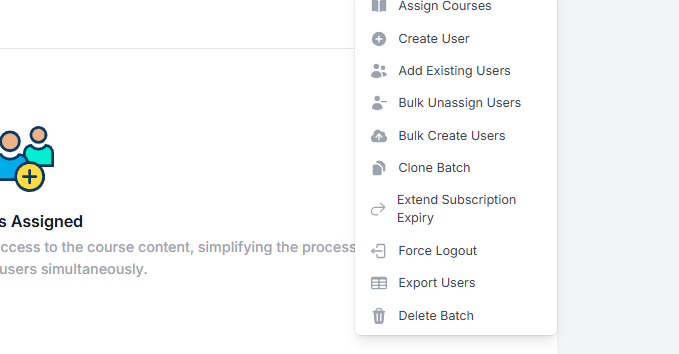
Enter the user identifiers (usernames, email IDs, or phone numbers), each on a new line.

Click Submit to remove the users from the batch, or Cancel to exit.
Once submitted, the listed users will be removed from the selected batch.
Was this article helpful?
That’s Great!
Thank you for your feedback
Sorry! We couldn't be helpful
Thank you for your feedback
Feedback sent
We appreciate your effort and will try to fix the article