This section explains how to set the pricing for your course and configure its sales page, ensuring your course is ready for learners with the right pricing, description, and details.
Set Course Pricing
Navigate to the course you want to set pricing for.
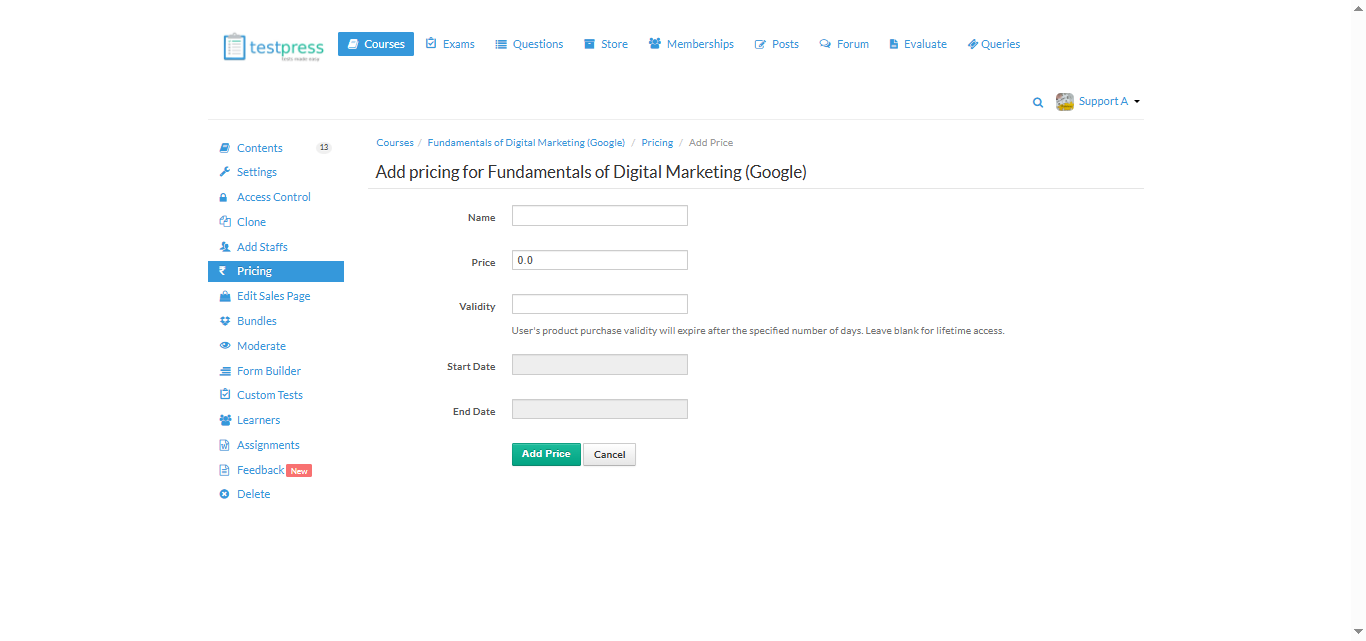
Click on the Pricing option from the left menu.
Fill in the required details:
Name: Give a name to this pricing option (e.g., Standard, Premium).
Price: Enter the price for the course.
Validity: Specify the number of days the course will be accessible after purchase (leave blank for lifetime access).
Start Date / End Date: Set optional start and end dates for this pricing option.
Click Add Price to save the changes.
Edit Course Sales Page
Go to Edit Sales Page from the left menu.
Customize your course page by setting:
Thumbnail: Upload a representative image for the course.
Description: Add a detailed description of your course.
Category: Assign the course to a relevant category.
Save your changes to make your course live with the updated pricing and product details.
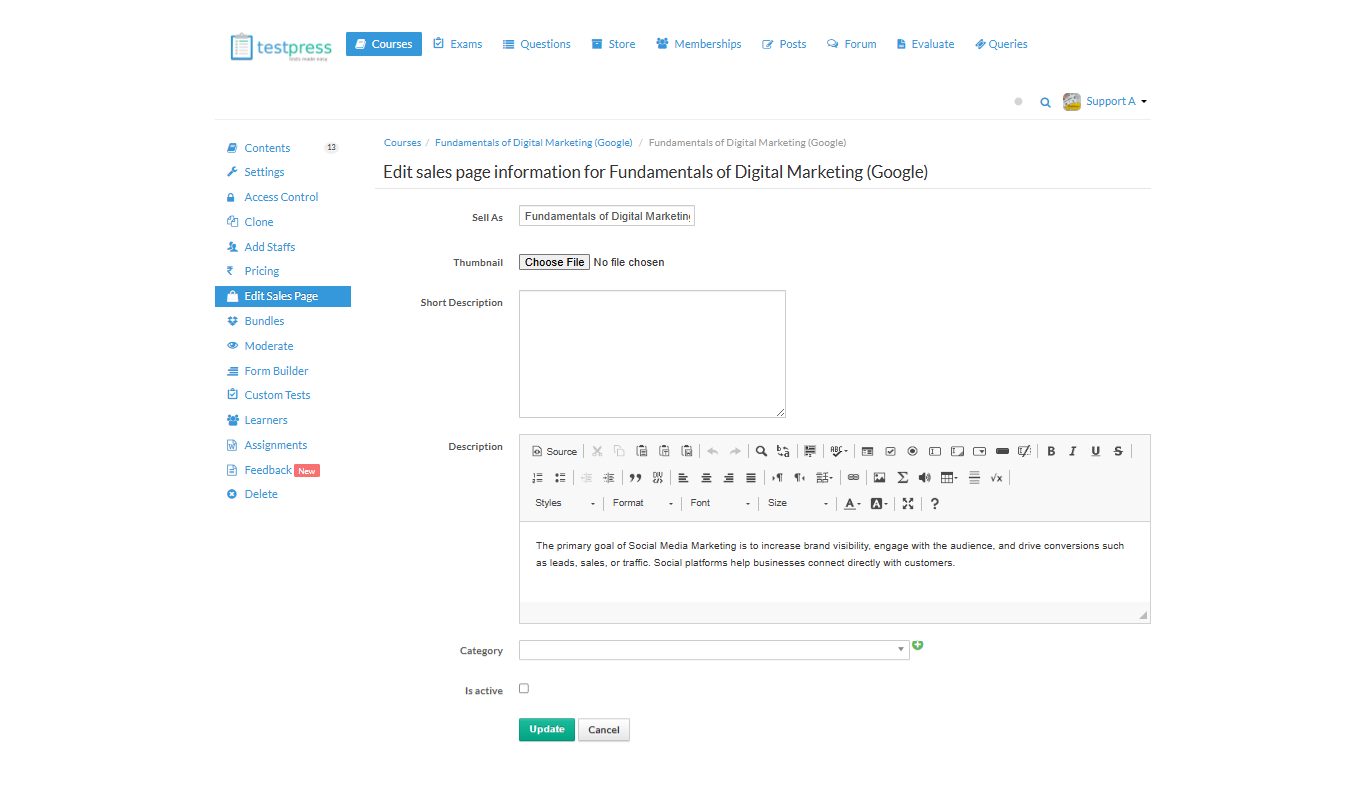
By enabling this active product will be live on store where user can purchase
Was this article helpful?
That’s Great!
Thank you for your feedback
Sorry! We couldn't be helpful
Thank you for your feedback
Feedback sent
We appreciate your effort and will try to fix the article