This section explains how to manage and control course learner access.
Testpress provides flexible controls to help you manage who can access your course and how learners consume the content. Below are the key options available under course settings
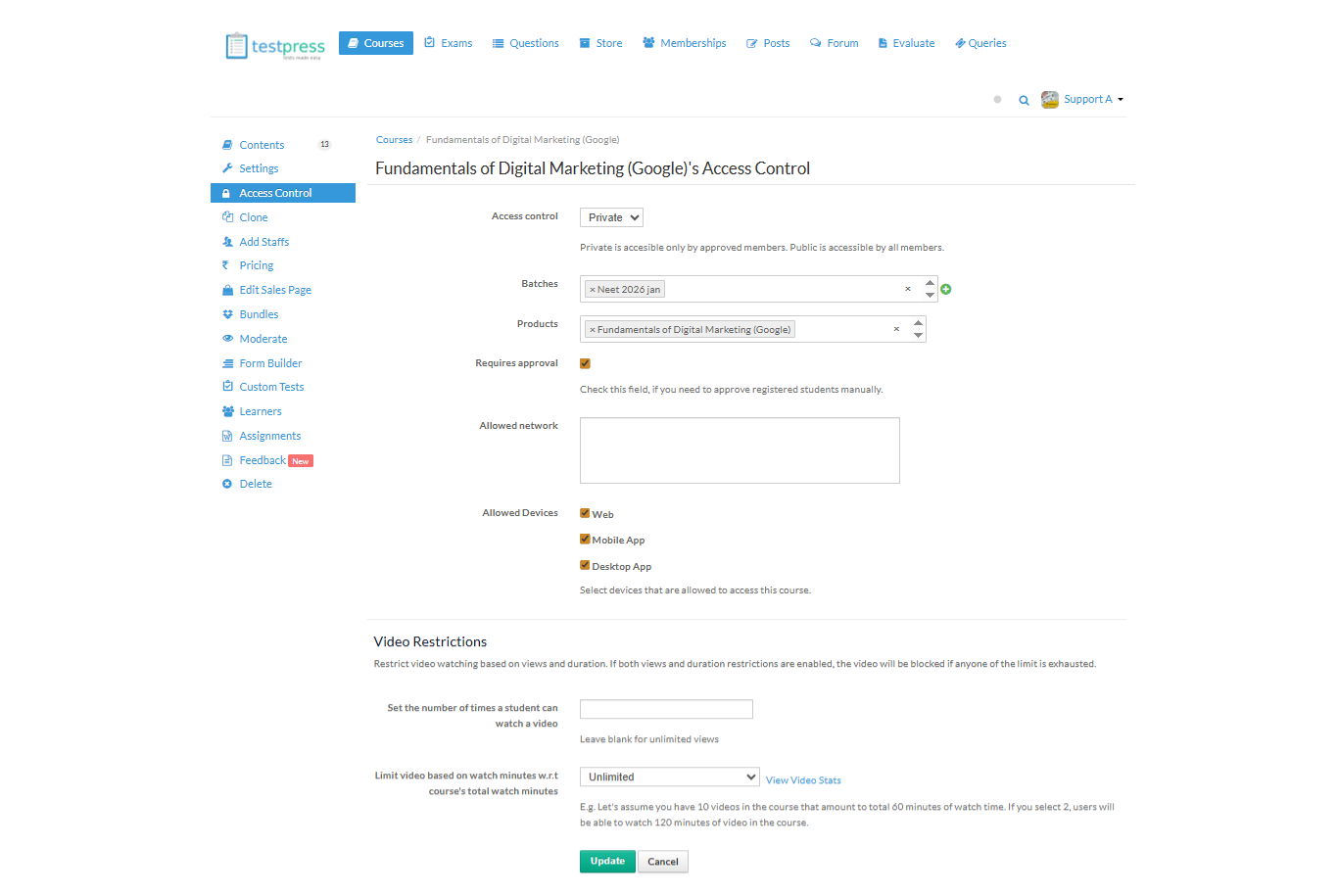
Access Control
Access Control allows you to decide the visibility of your course. You can set the course as Public to allow anyone to enroll, or Private to restrict access only to selected learners.
Batches
You can assign the course to specific batches, enabling offline or limited access only to learners who belong to those batches.
Products
Courses are automatically assigned to a product or bundle once the product or bundle is created. No manual assignment is required.
Requires Approval
Enable Requires Approval if you want to manually approve learners after they register. This gives you full control over who gets access to the course.
Allowed Network
You can restrict course access to specific networks by adding allowed IP addresses. Learners will be able to access the course only from the approved networks.
Allowed Devices
Control where your course can be accessed by selecting the allowed devices:
Web
Mobile App
Desktop App
Only the selected platforms will be permitted for course access.
Video Restrictions
Video Restrictions help control how learners watch course videos. You can restrict access based on:
Number of views
Watch duration
If both limits are enabled, the video will be blocked once either limit is reached.
Set Number of Video Views
You can define how many times a learner can watch a video. Leave this field blank to allow unlimited views.
Limit Video Based on Watch Minutes
Restrict viewing based on total watch time.
For example, if your course has 10 videos totaling 60 minutes and you set the limit to 2, learners can watch up to 120 minutes in total.
Clone Course
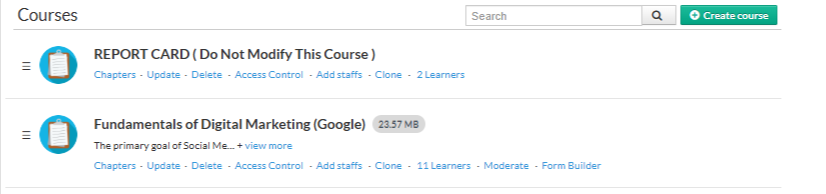
The Clone option allows you to duplicate the entire course, including content and settings, saving time when creating similar courses.
Add Staff
You can add staff members who need access to the course. Staff can be assigned restricted access, ensuring they only view or manage permitted sections.
Was this article helpful?
That’s Great!
Thank you for your feedback
Sorry! We couldn't be helpful
Thank you for your feedback
Feedback sent
We appreciate your effort and will try to fix the article