This section explains how you can add new members to your portal using different methods. Adding members allows you to give users access to courses, batches, and learning content.
Method 1: Invite Members by Email
This is the quickest way to add users by sending them an email invitation.
Steps to invite members by email:
Go to Members.
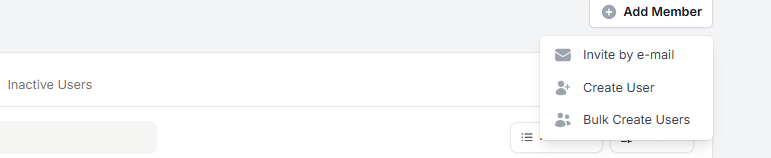
Click Add Member at the top right.
Select Invite by e-mail.
Enter one or more email addresses
(you can add multiple emails separated by commas).Select the user role (for example, Student).
Assign the user to a batch if required.
Set a subscription expiry date if access should be time-limited
(leave it empty for lifetime access).Click Invite.
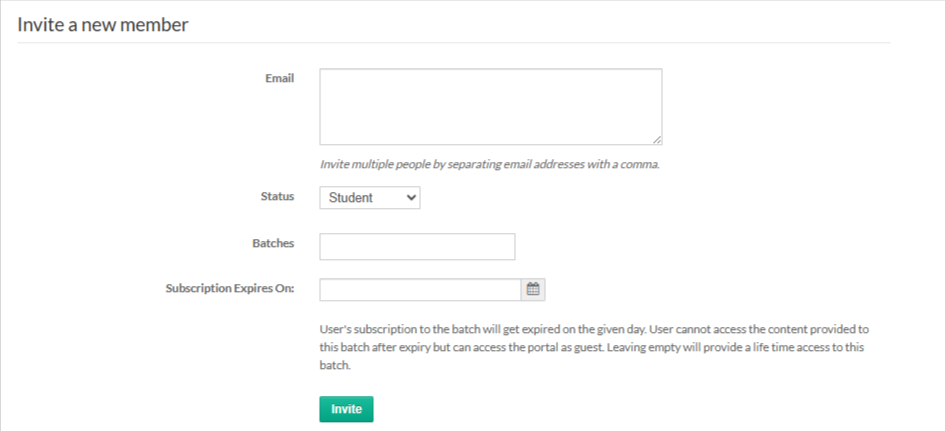
An invitation email will be sent, and users can join using the link provided.
Method 2: Create a User Manually
This method lets you add a member directly by entering their details. It is useful when you want to set access, role, and credentials immediately
Select Create User under Add members
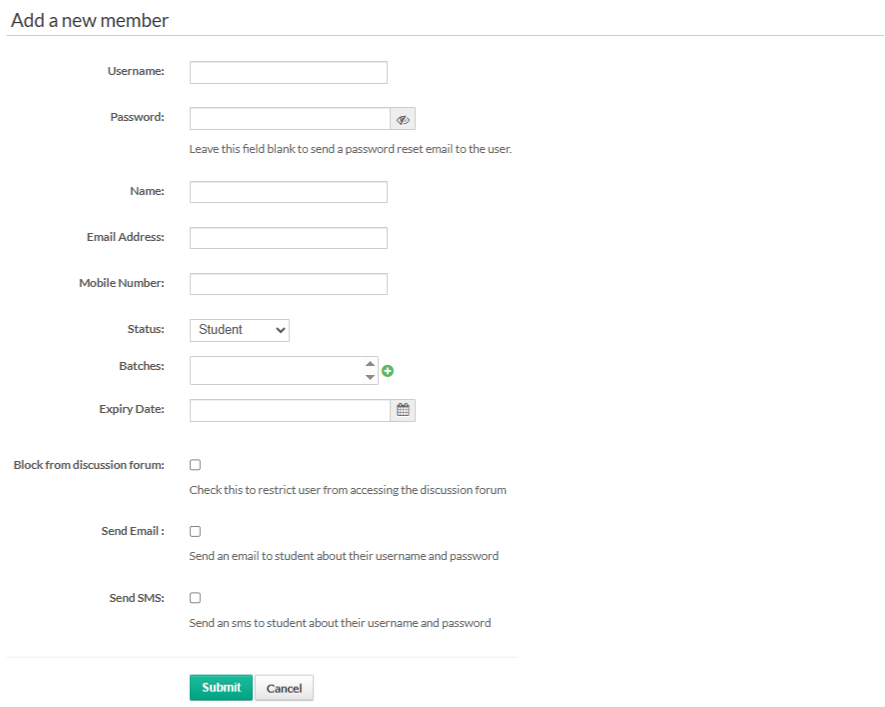
Enter User Details
Fill in the following details:
Username
Password
(Leave this blank to send a password reset email to the user)Name
Email Address
Mobile Number
Select the Status: You can choose roles such as: Student, Mentor, Admin
Assign the user to one or more Batches if required.
Set an Expiry Date to limit access
(Leave empty for lifetime access).Enable additional options if needed:
Block from discussion forum – prevents access to discussions
Send Email – shares login details by email
Send SMS – shares login details by SMS
Click Submit to create the user.
Click Cancel if you want to discard the changes.
Method 3: Bulk Create Users Using Excel
This method helps you add multiple members at once by uploading an Excel file. It is useful when onboarding a large number of users quickly.
Steps to Bulk Create Users
Select Bulk Create Users under Add Members
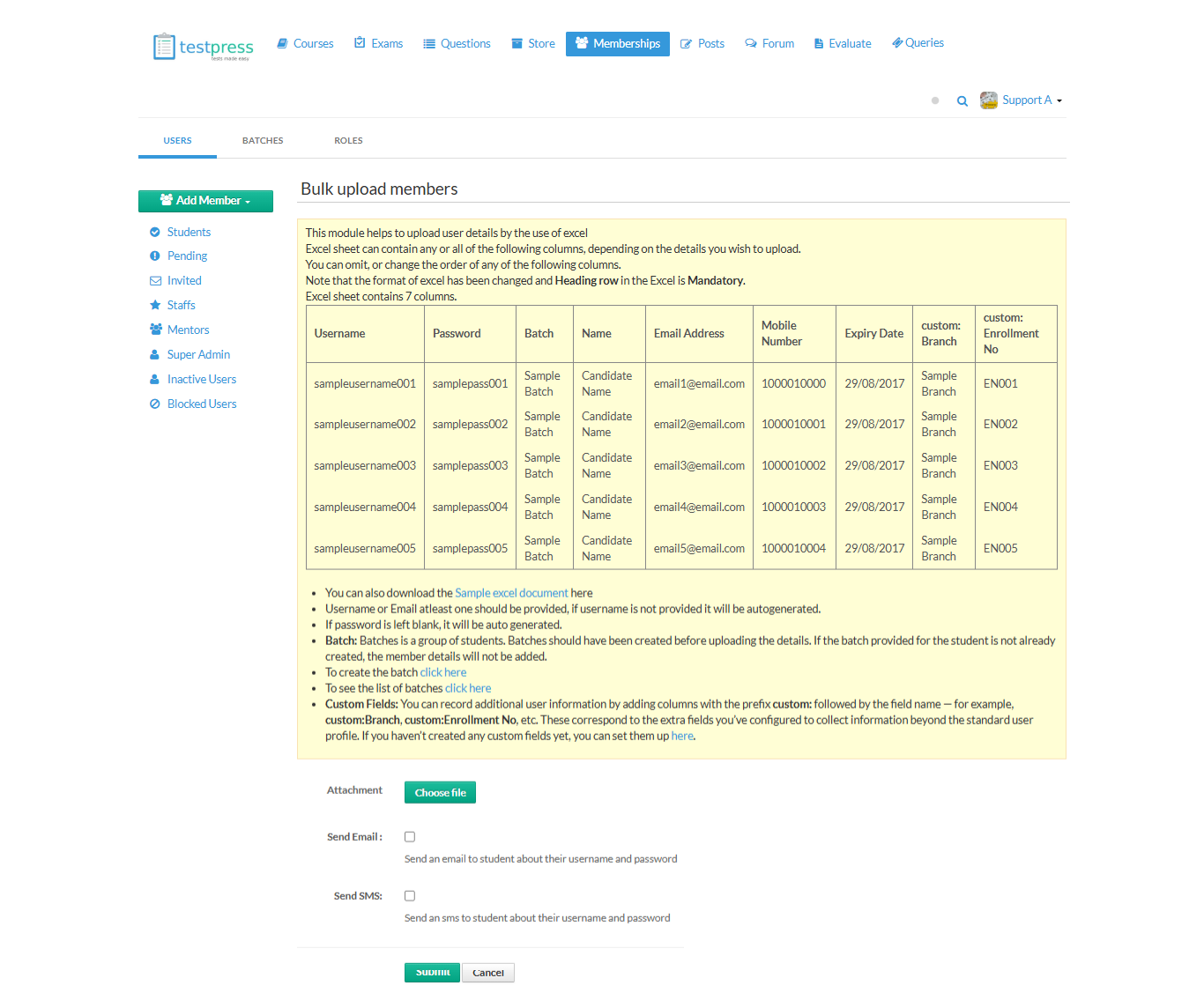
Prepare the Excel File
2. Download the sample Excel file provided on the page
3. Enter user details in the Excel sheet.
The header row is mandatory.
You can include the following columns (based on your requirement):
Username
Password
Batch
Name
Email Address
Mobile Number
Expiry Date
Custom fields (example: custom:Branch, custom:Enrollment No)
Important notes:
Either Username or Email must be provided.
If Username is empty, it will be auto-generated.
If Password is left blank, it will be auto-generated.
Batches must already exist before uploading the file.
Custom fields should be created in advance to capture extra details.
4. Click Choose File and upload the completed Excel sheet.
5. Enable options if needed:
Send Email – shares login details by email
Send SMS – shares login details by SMS
6. Click Submit to create users in bulk.
7. Click Cancel to stop the process.
Was this article helpful?
That’s Great!
Thank you for your feedback
Sorry! We couldn't be helpful
Thank you for your feedback
Feedback sent
We appreciate your effort and will try to fix the article