This section walks you through setting up certificates for course completion.
You can issue certificates to learners after they complete a course. This helps acknowledge their effort and gives them a shareable proof of completion.
Follow these simple steps:
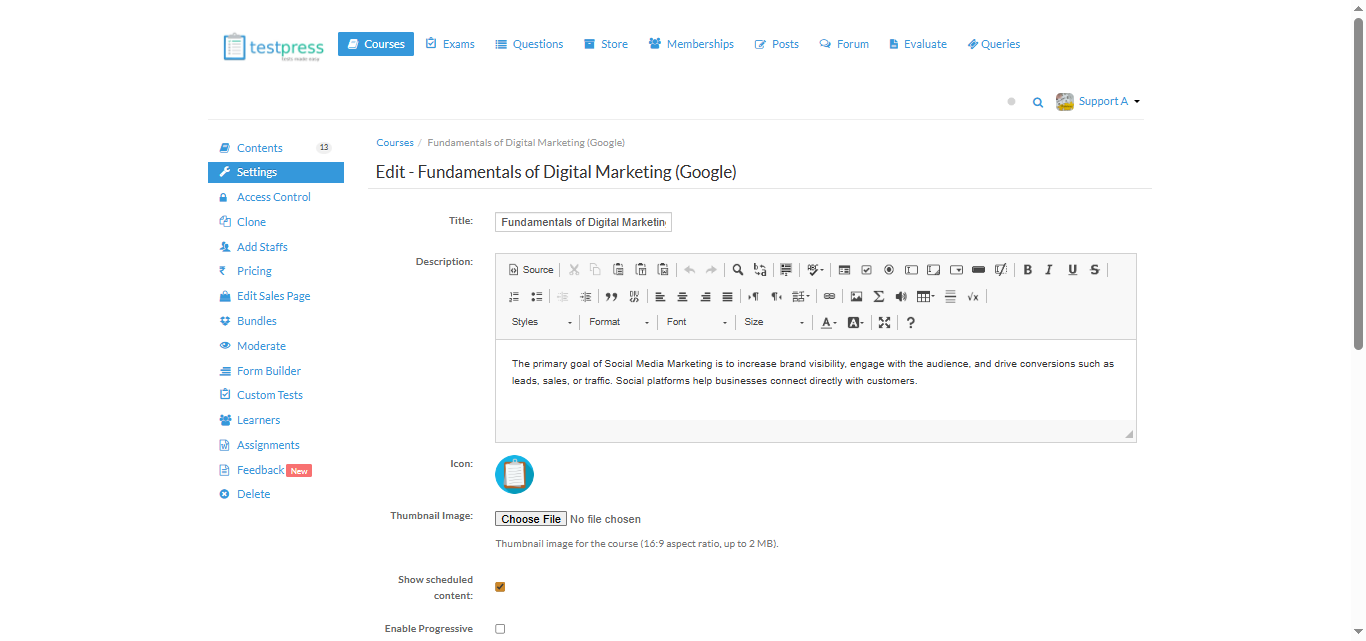
Step 1: Open Course Settings
Go to the Courses section and open the course you want to edit.
From the left menu, click Settings.
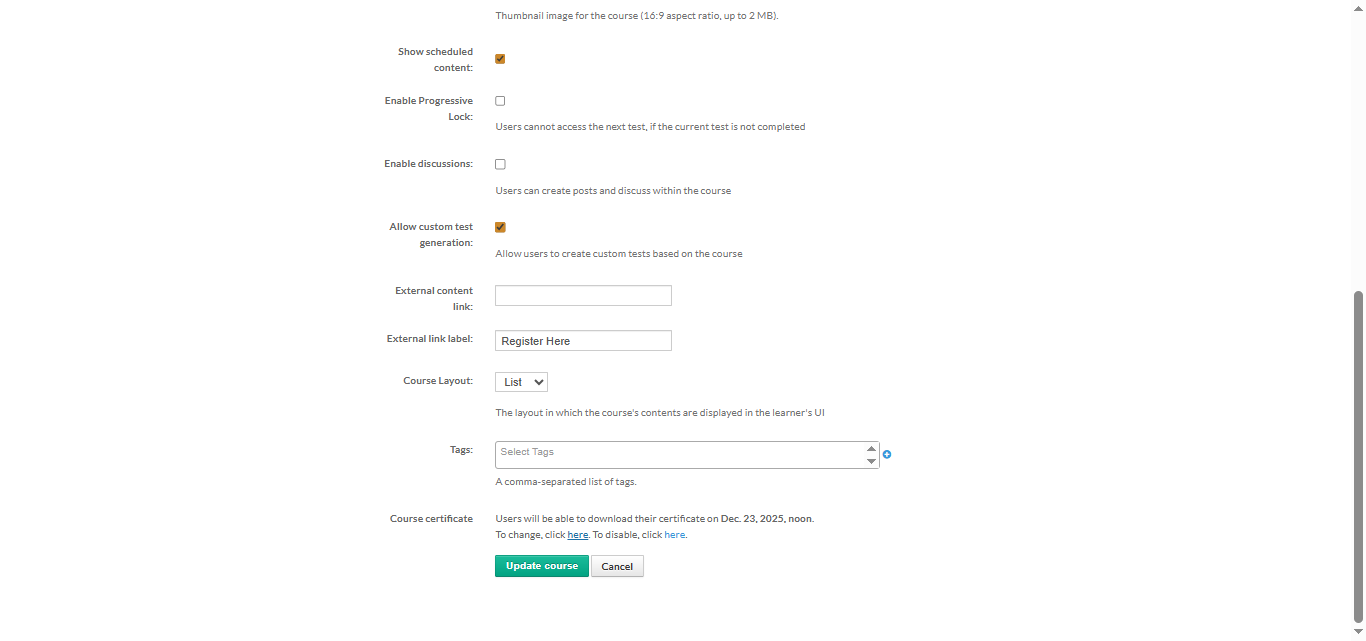
Step 2: Start Certificate Setup
Under course settings, click on Course Certificate Setup.
This is where you configure how the certificate will look and when it will be awarded.
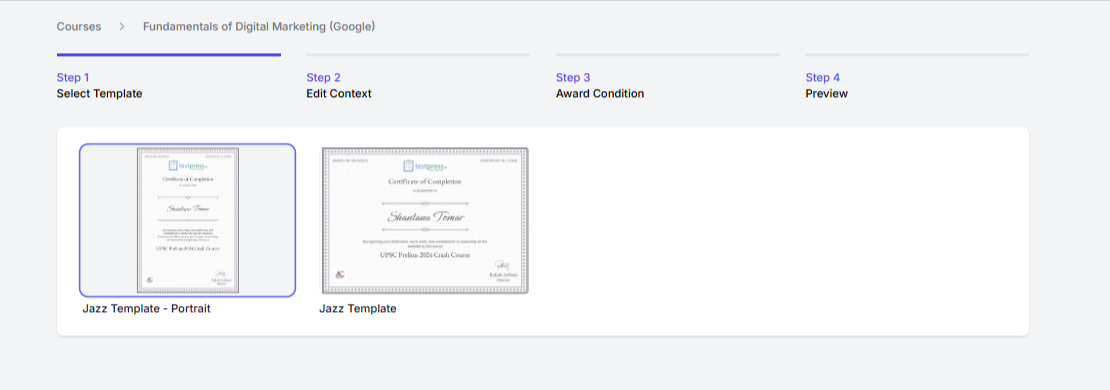
Step 3: Select a Certificate Template
Choose a certificate template from the available options.
This defines the overall design and layout of the certificate.
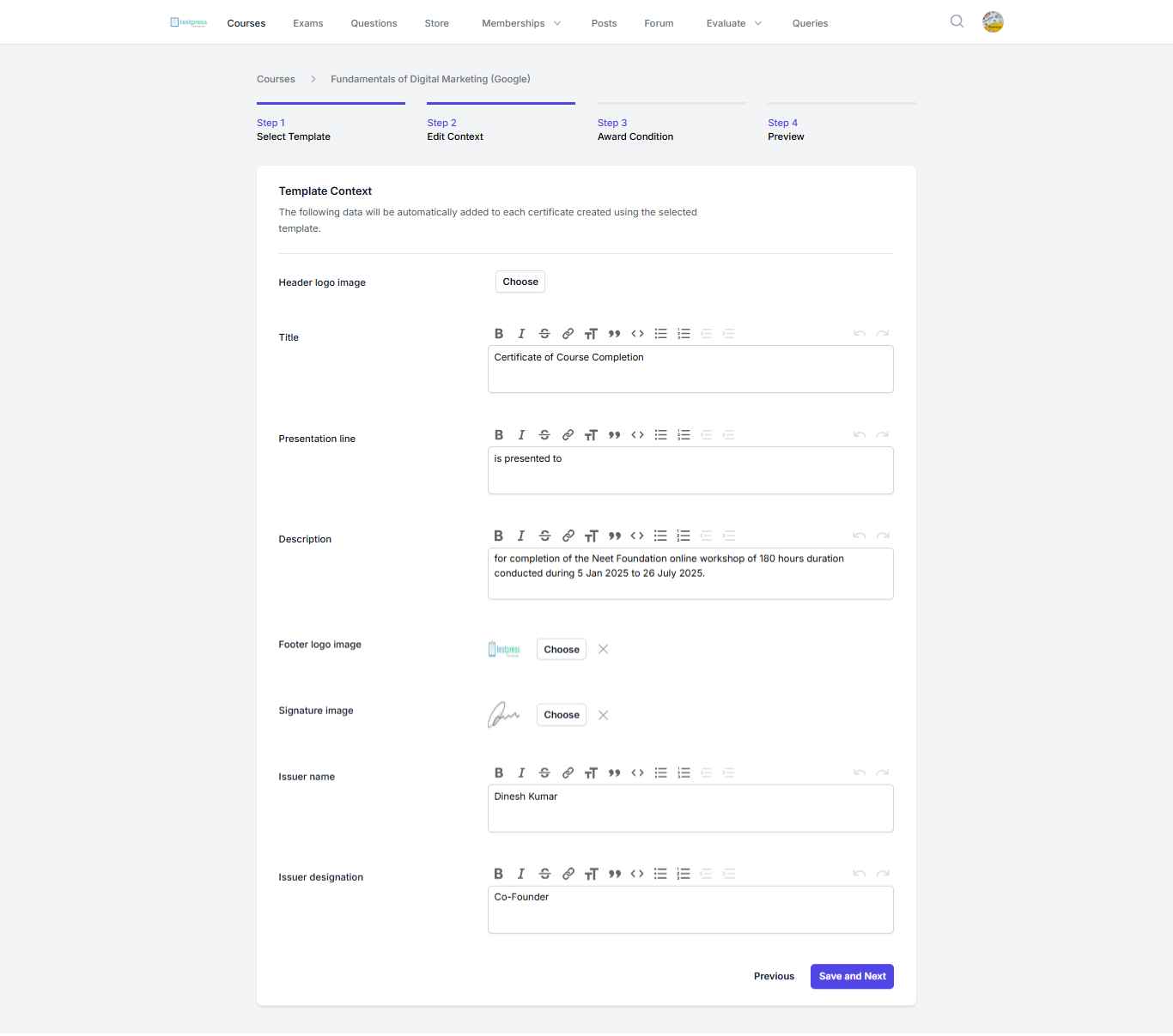
Step 4: Customize the Certificate
Edit the certificate details such as:
Title
Presentation text
Course description
Issuer name and designation
Logo and signature
You can adjust the text to match your institute’s style.
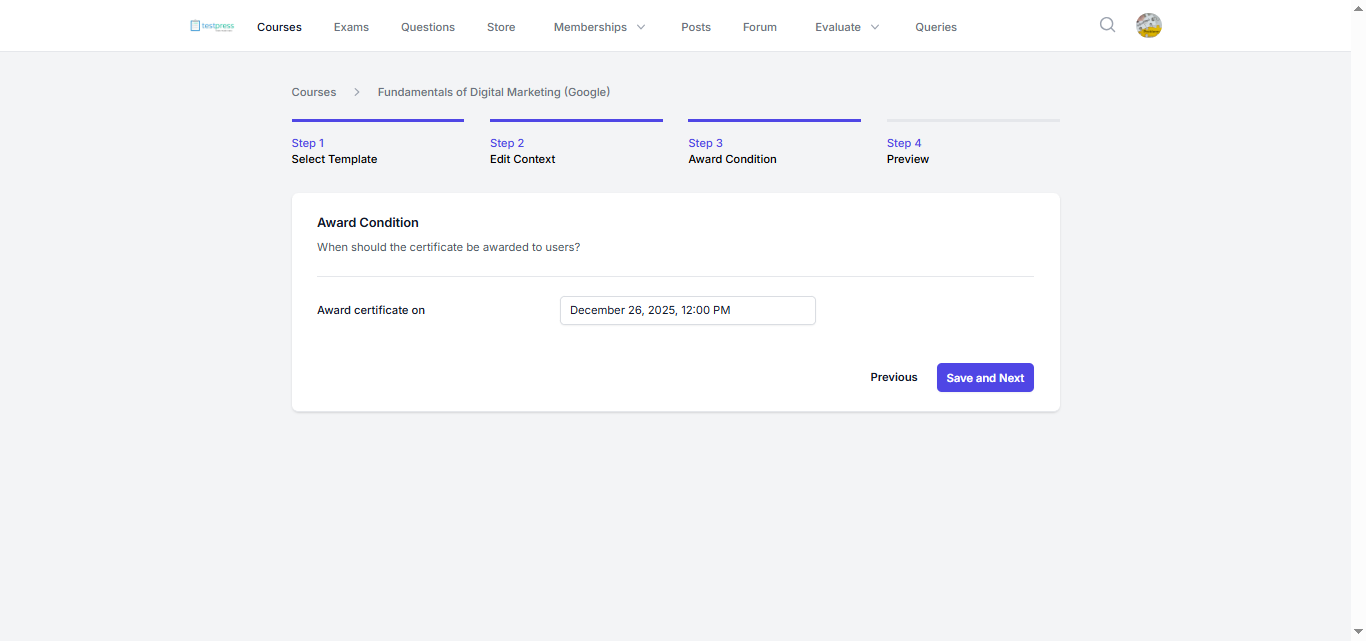
Step 5: Set Award Conditions
Choose when the certificate should be awarded.
Set the completion date or condition, then click Save and Next.
Step 6: Preview the Certificate
Review the final certificate preview.
Once everything looks correct, confirm and submit.
After this, learners will be able to download their certificate automatically once they meet the course completion criteria.
Was this article helpful?
That’s Great!
Thank you for your feedback
Sorry! We couldn't be helpful
Thank you for your feedback
Feedback sent
We appreciate your effort and will try to fix the article