Security Settings help you protect your institute’s admin and staff access by adding extra layers of control. From this section, you can enable multi-factor authentication, manage shared access using a master password, and automatically log out inactive users.
How to Access Security Settings
Go to Settings
Select Institute
Click on Security Settings
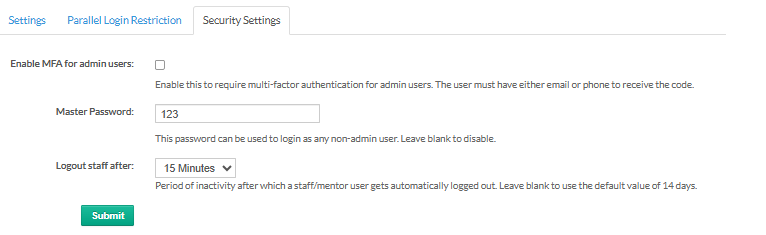
Available Security Options
Enable MFA for Admin Users
When enabled, admin users will be required to verify their identity using a second factor during login. The verification code is sent via email or phone.
Master Password
The master password allows login access for non-admin users using a single shared password.
Notes:
This password can be used to log in as any non-admin user
Leave this field blank to disable the master password
Use this option carefully, especially in shared environments
Logout Staff After Inactivity
This setting automatically logs out staff or mentor users after a selected period of inactivity.
Why this helps:
Prevents unauthorized access when a user forgets to log out from a shared or idle system.
After configuring the required options, click Submit to apply the changes.
Was this article helpful?
That’s Great!
Thank you for your feedback
Sorry! We couldn't be helpful
Thank you for your feedback
Feedback sent
We appreciate your effort and will try to fix the article