The SEO Settings section in Testpress helps you optimize your institute’s website for search engines. By configuring SEO details such as title, meta description, keywords, and indexing preferences, you can improve your site’s visibility on search results and attract more organic traffic.
This section allows you to control how search engines crawl, index, and display your pages, helping potential learners discover your platform easily.
How SEO Settings Help
Improve visibility on search engines like Google
Control how your pages appear in search results
Manage search engine indexing and link-following behavior
Optimize your institute’s branding and discoverability
Step 1: Go to SEO Settings
Navigate to Settings in your Testpress admin panel.
Click on SEO Settings.
This section allows you to update your institute’s SEO-related information.
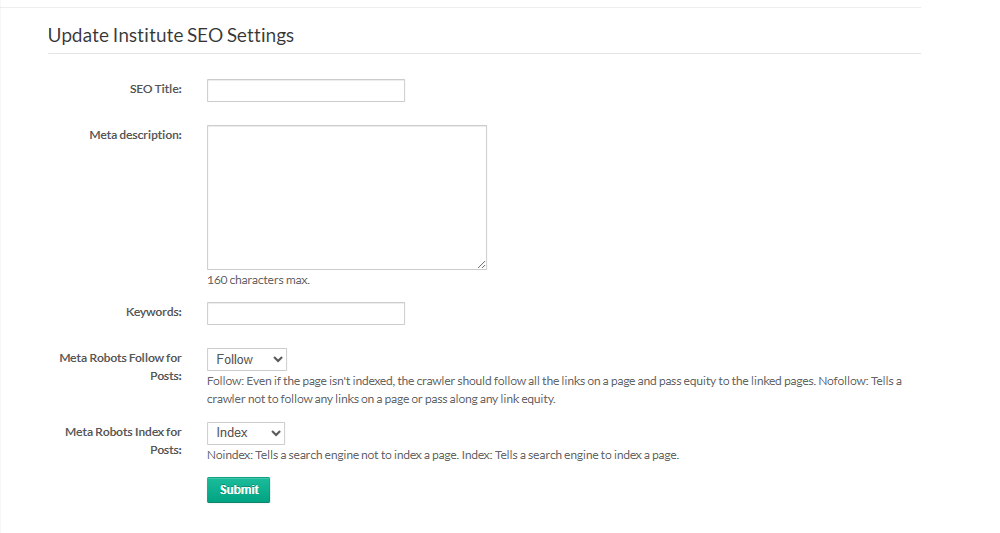
Step 2: Update SEO Details
SEO Title: Enter the title that should appear in search engine results.
Meta Description: Add a short description (up to 160 characters) that summarizes your institute or page.
Keywords: Enter relevant keywords related to your institute or courses.
Meta Robots Follow for Posts: Choose whether search engines should follow links on your pages.
Meta Robots Index for Posts: Select whether search engines should index your pages.
Click Submit to save the changes.
By configuring SEO settings, you can improve your institute’s visibility and help learners find your platform more easily.
Was this article helpful?
That’s Great!
Thank you for your feedback
Sorry! We couldn't be helpful
Thank you for your feedback
Feedback sent
We appreciate your effort and will try to fix the article