This section explains how Event Logs help admins stay aware of important actions and security-related activities happening on the portal.
Event logs are mainly used to track sensitive actions, identify unusual activity, and respond quickly to issues. Admins receive notifications based on the event settings they choose.
Access Event Logs
Log in to the Admin Panel
Go to Settings → Event Logs
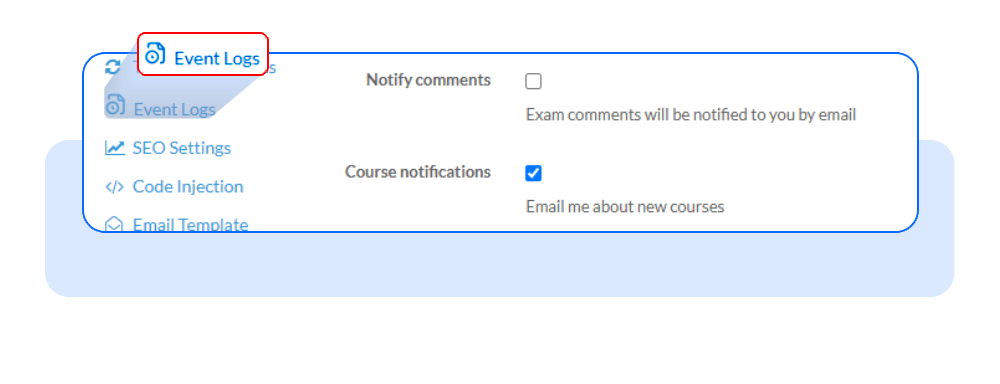
You will see a list of predefined events recorded by the system. This helps identify unusual or unauthorized access patterns.
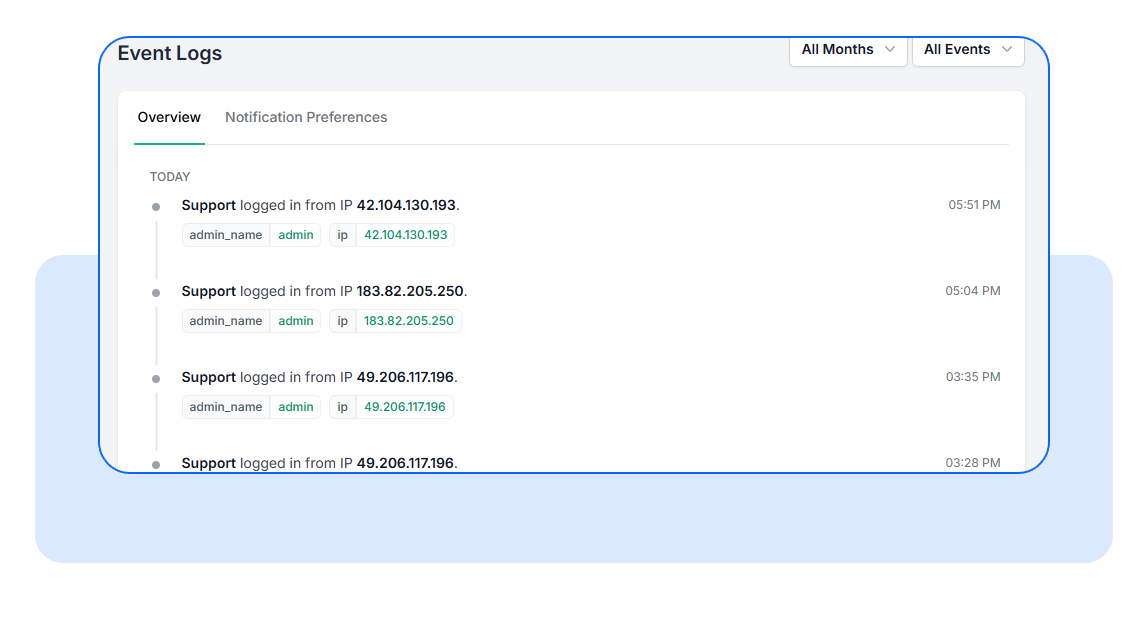
3. Set Notification Preferences
Admins can choose how they want to receive event notifications.
1. All Critical Events
Select this option to receive notifications for all high-priority events.
This includes:
Security breaches
Failed login attempts
Other critical system alerts
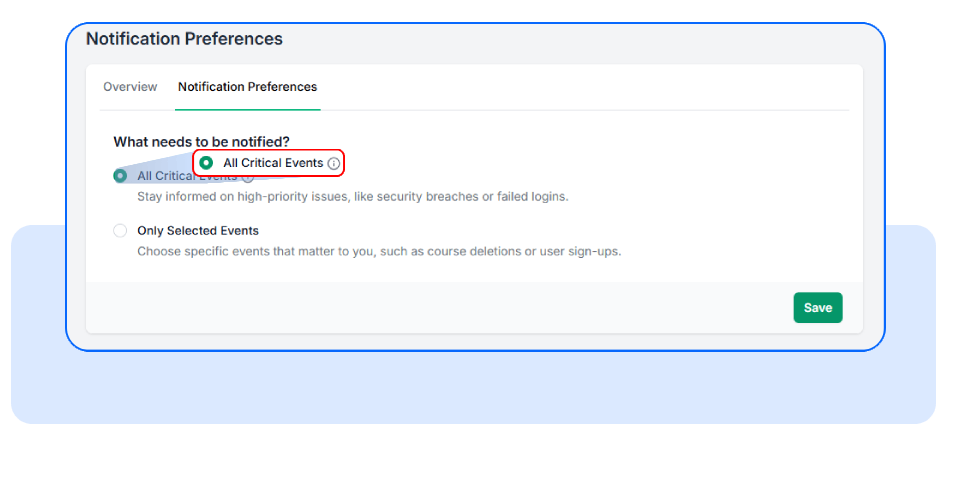
Recommended if you want full visibility into security-related activity.
2. Only Selected Events
Select this option to receive notifications only for specific events you choose.
Examples:
Course deletions
Failed creations
Accounts Deactivations
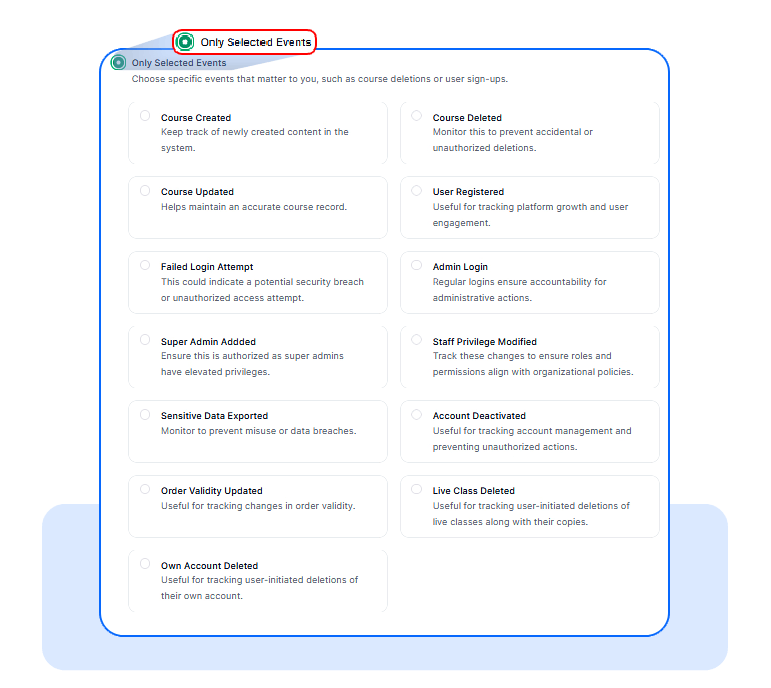
Recommended if you want focused alerts without frequent notifications.
4. Save Your Settings
Once you’ve selected your preferred notification option, click Save.The changes are applied immediately.
Was this article helpful?
That’s Great!
Thank you for your feedback
Sorry! We couldn't be helpful
Thank you for your feedback
Feedback sent
We appreciate your effort and will try to fix the article